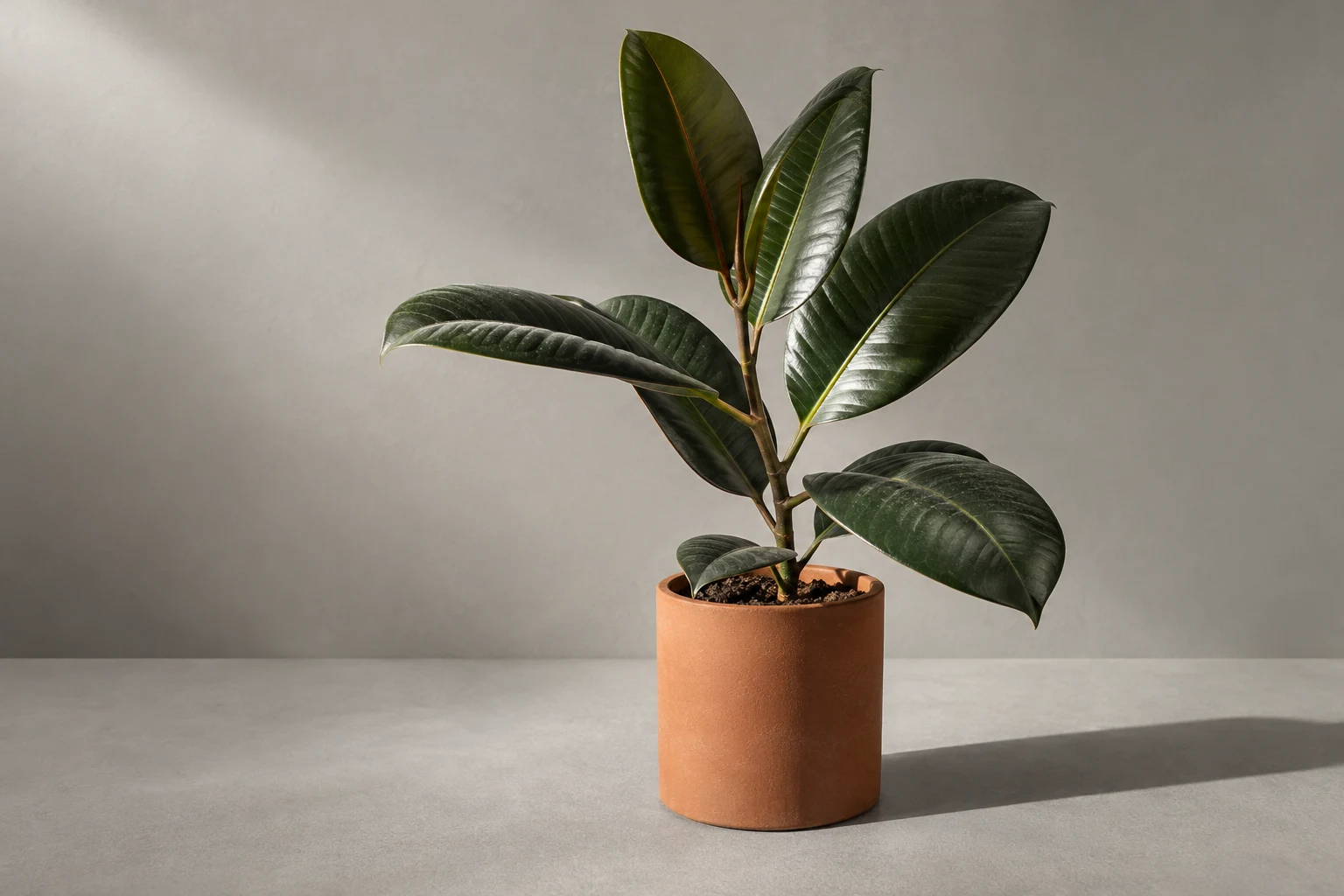
Here is what you are aiming for
Illustrative example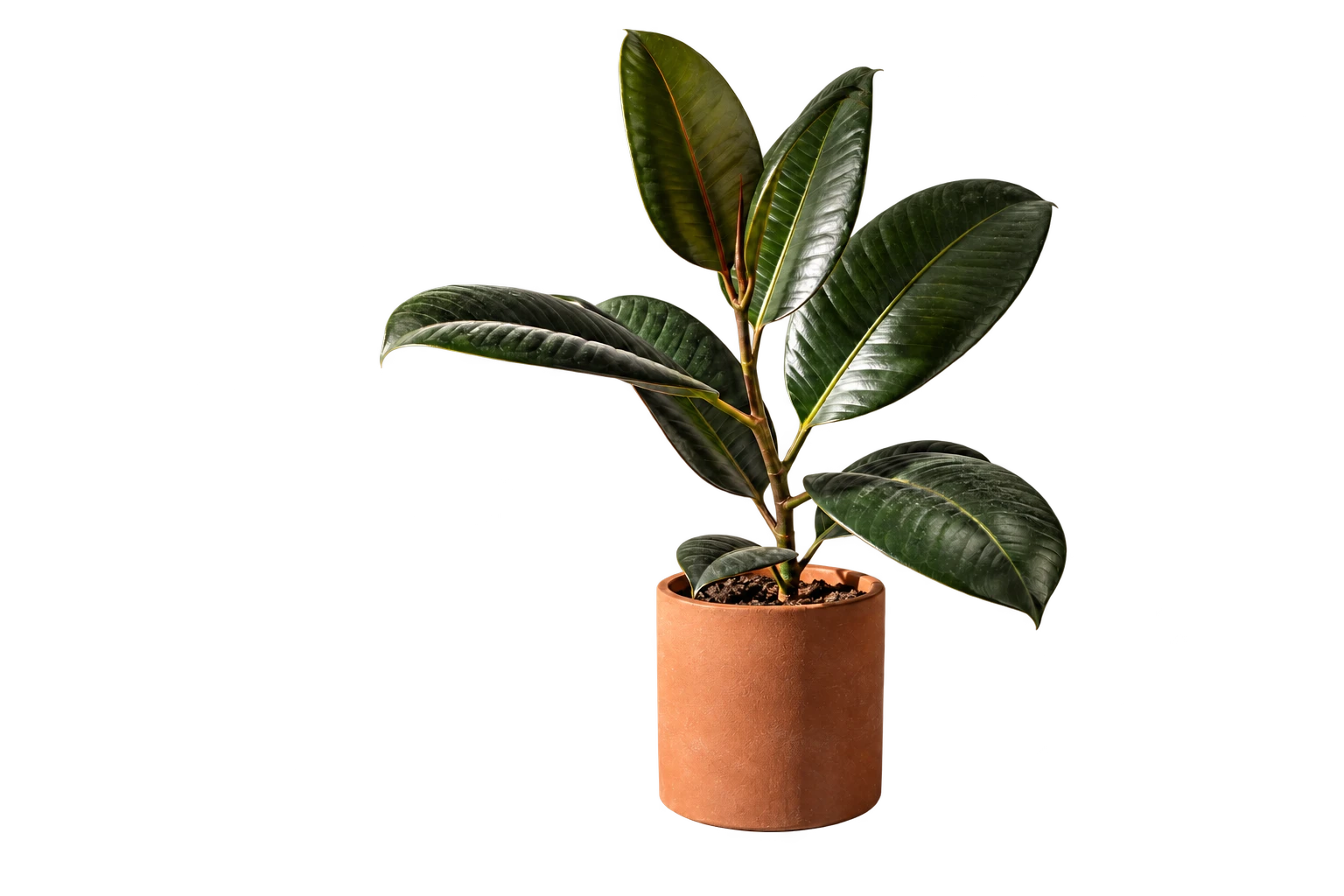
A transparent PNG to use elsewhere
Let’s take it step by step
- 1
Choose a photo
Choose an image with a clear subject against a distinct background. You can also download our practice image below.
Download practice image (PNG) ↓AI-generated example image · for practice
- 2
Upload it to PhotoRoom
Open the background remover and use its photo selection or upload button. Select your file to begin. Button labels can vary by language.
Open PhotoRoom new tab - 3
Check the edges and save a PNG
Inspect leaves, hair, and handles for missing details. Keep the background transparent and download a PNG. Check size and paid labels before downloading.
A quick check before you finish
Something not quite right?
The saved background is white
Select a transparent background and save as PNG. JPG cannot preserve transparency. Place the PNG on another background to check.
Hair or glass is missing
Complex edges, glass, and reflections can be difficult to separate. Try a photo with stronger contrast, or check the terms for manual restore tools.
It asks for an account or a paid export
Official guidance distinguishes free access from paid high-resolution export. Check for a free option. An account, a trial, and a payment are different. Stop before paying if the available resolution does not meet your needs.
What we have checked
Official steps and free-start guidance were reviewed. The comparison images were generated with AI and are not PhotoRoom results. Sign-in and free download limits have not been tested in a live session.
Official sources reviewed: